
Submitting a record currently showing as ‘Draft’
Steps
Follow the steps below if you saved a record as a ‘Draft’ and are now ready to submit the record to the Ministry.
Note: These steps use the Annual Report record as an example
Find the Record
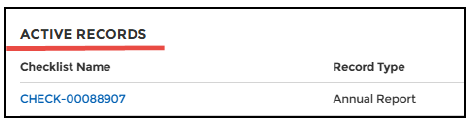
From the main School Planning and Reporting page, find the record you want to submit under the ‘Active Records’ section.
Select the relevant checklist link (this is the text in blue) under the ‘Checklist Name’ column.
Edit
Select the ‘Edit’ button in the bottom right-hand corner of the record.

Upload
Upload any documents you want to submit but have not yet added to the record.
Submit
Select the ‘Submit Annual Report’ button in the bottom right-hand corner.
Complete
When completing an annual report record, you will be asked to record which components of the annual report you are submitting at this time.
When you have finished making your selection, select ‘Submit’ to send your record (including your uploaded document/s) to the Ministry.
When your record has been submitted successfully, you will see a confirmation message. This record will now show with a status of ‘Submitted’ under the list of your ‘Active Records’.