Completing a record and uploading files
Steps
The below diagrams show how to submit a document, using the annual report as an example.
Select ‘Submit Annual Report’
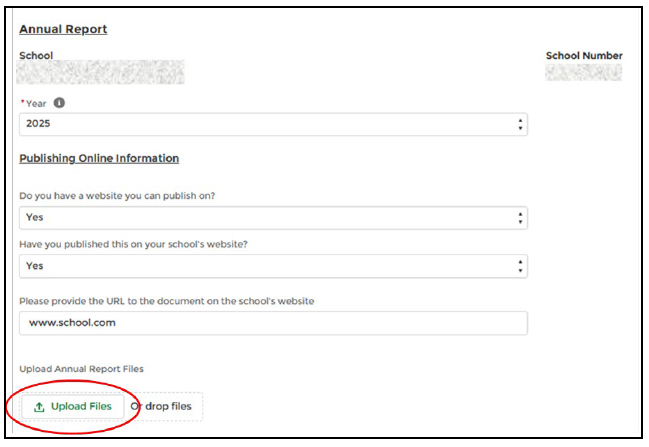
An annual report record will appear. Your school name and school number will populate automatically.

Annual Report
A. Select the year of the document you are submitting. For a 2025 annual report due 31 May 2026, this will be ‘2025’.
B. Answer the questions about whether the document has been published on your school website.
Note: If you do not have a school website, you will have the option of requesting the Ministry publish your document on Education Counts on your behalf. You will need to provide confirmation that your Board has reviewed any privacy concerns and approves the document for publication on the MoE website.
C. Upload your documents using the ‘Upload Files’ button.
File Limit
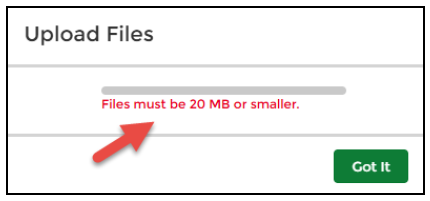
Note: You can upload individual files to 20mb size. If your document is bigger than 20mb, you can split the file and upload multiple smaller files. You will receive a warning if any individual file is too big.
Next
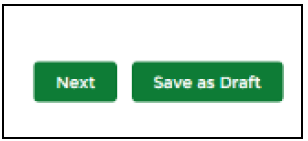
After you have uploaded your files, select ‘Next’
Note: If the ‘Next’ button is not showing, please check you have answered all of the questions on the record. If you are not ready to submit to the Ministry just yet, you can choose ‘Save as Draft’. You can come back to complete this record later.
Component Summary
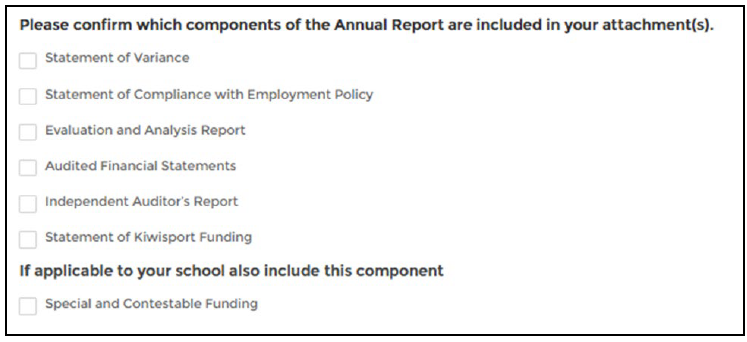
When completing an annual report record, you will be asked to record which components of the annual report you are submitting at this time.
Submit
When you have finished making your selection, select ‘Submit’ to send your record (including your uploaded document) to the Ministry.
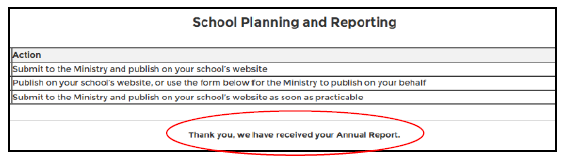
Confirmation
When your record has been submitted successfully, you will see a confirmation message. This record will now show with a status of ‘Submitted’ under the list of your ‘Active Records’ .